


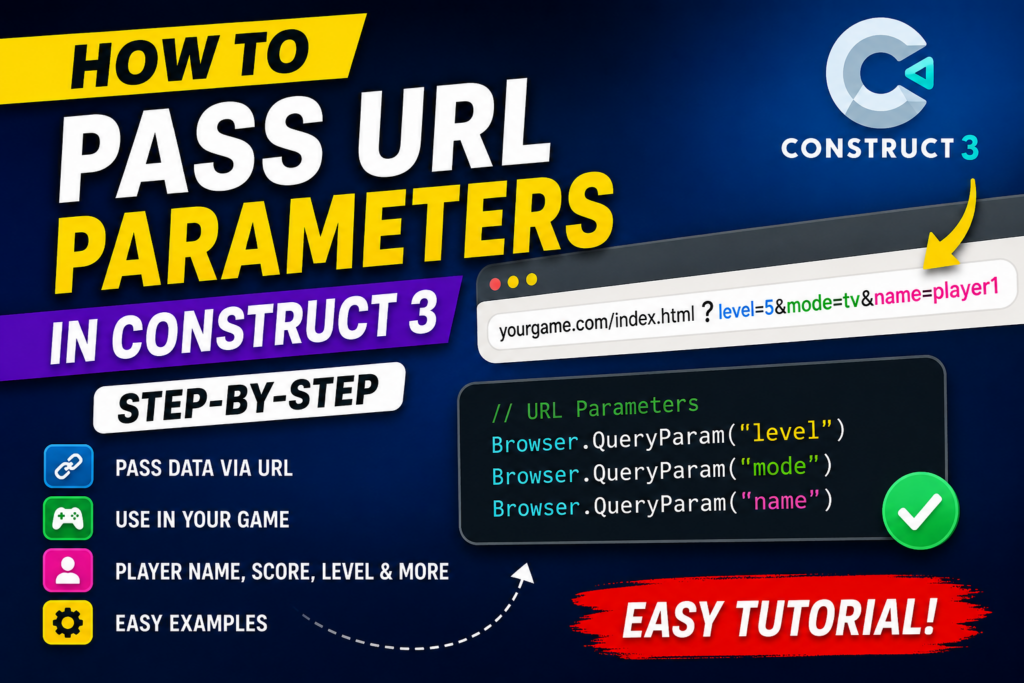
URL parameters are a powerful way to pass data into your Construct 3 games and web applications. Whether you want to load a specific level, change game modes, pass player information, or connect your game to an Android app, URL parameters provide a simple and effective solution.
In this tutorial, you’ll learn how to read URL parameters in Construct 3 using the Browser object and the QueryParam expression.
What Are URL Parameters?
URL parameters, also known as query parameters, are values added to the end of a URL after a question mark (?).
Example:
https://yourgame.com/index.html?level=5&mode=easyIn this example:
- level = 5
- mode = easy
These values can be read and used inside your Construct 3 project.
Why Use URL Parameters in Construct 3?
URL parameters are useful for:
- Loading specific game levels
- Changing difficulty modes
- Passing player names
- Sending scores
- Loading profile photos
- Language selection
- Android app integration
- Smart TV applications
- User authentication
They allow external applications and websites to communicate directly with your Construct 3 project.

Step 1: Add the Browser Object
Open your Construct 3 project.
Insert the Browser object into your project.
The Browser object provides access to URL information and allows you to read query parameters from the current page.
Step 2: Create Global Variables
Create two global variables:
Global Number
levelGlobal String
modeThese variables will store values received from the URL.
Step 3: Read URL Parameters
Go to your Event Sheet.
Create the following event:
On Start of LayoutSet the level variable:
level = Browser.QueryParam("level")Set the mode variable:
mode = Browser.QueryParam("mode")When the layout starts, Construct 3 will automatically read the values from the URL and store them in the variables.
Step 4: Display the Values
To verify everything is working correctly, create two Text objects.
For the first text object:
Set Text to levelFor the second text object:
Set Text to modeThis allows you to see the values received from the URL.
Step 5: Test the Project
Preview your project and add parameters to the URL.
Example:
index.html?level=5&mode=easyConstruct 3 will read:
level = 5
mode = easy
The text objects should display these values on screen.
Passing Multiple Parameters
You can pass as many parameters as needed.
Example:
index.html?name=Virendra&photo=avatar.png&score=2500&level=10&mode=hardRead them using:
Browser.QueryParam("name")
Browser.QueryParam("photo")
Browser.QueryParam("score")
Browser.QueryParam("level")
Browser.QueryParam("mode")
Connecting Android Apps to Construct 3
One of the most useful applications of URL parameters is Android integration.
An Android app can launch a Construct 3 game and pass information such as:
- Player Name
- Profile Photo
- Score
- Coins
- Current Level
- Language
- User ID
When the game starts, Construct 3 automatically reads the values and customizes the experience for the player.
This makes URL parameters perfect for Android WebView applications and hybrid mobile projects.
Common Use Cases
Load a Specific Level
?level=15Set Game Difficulty
?mode=hardPass Player Name
?name=PlayerOneSend Score
?score=5000Enable Smart TV Mode
?mode=tvConclusion
URL parameters are an easy and powerful way to pass data into Construct 3 projects. By using the Browser object’s QueryParam expression, you can read values directly from the URL and use them to control gameplay, load content, personalize experiences, and integrate with Android apps or external platforms.
Whether you’re building HTML5 games, web applications, Smart TV apps, or Android integrations, URL parameters are a feature every Construct 3 developer should know.